Party! guideMake a camera from your calendar

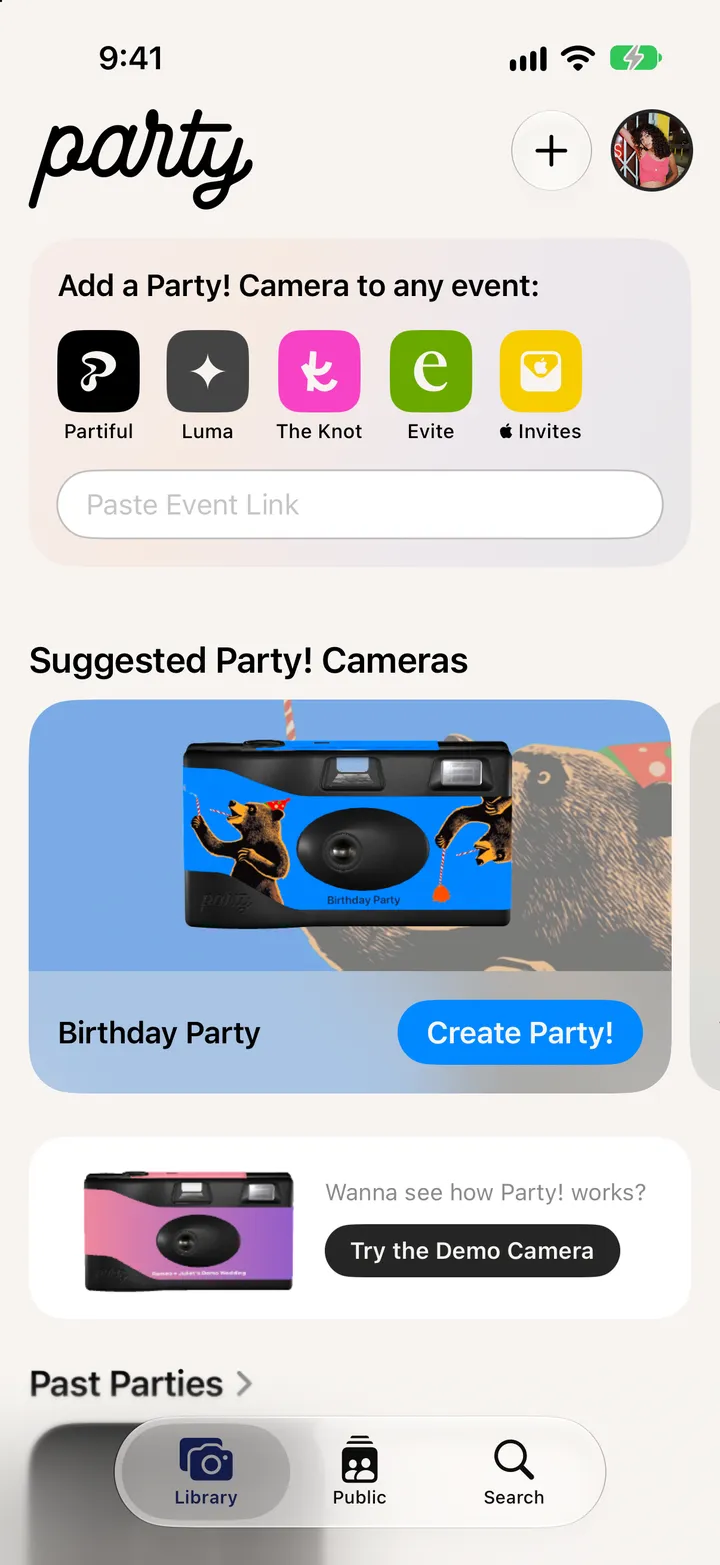
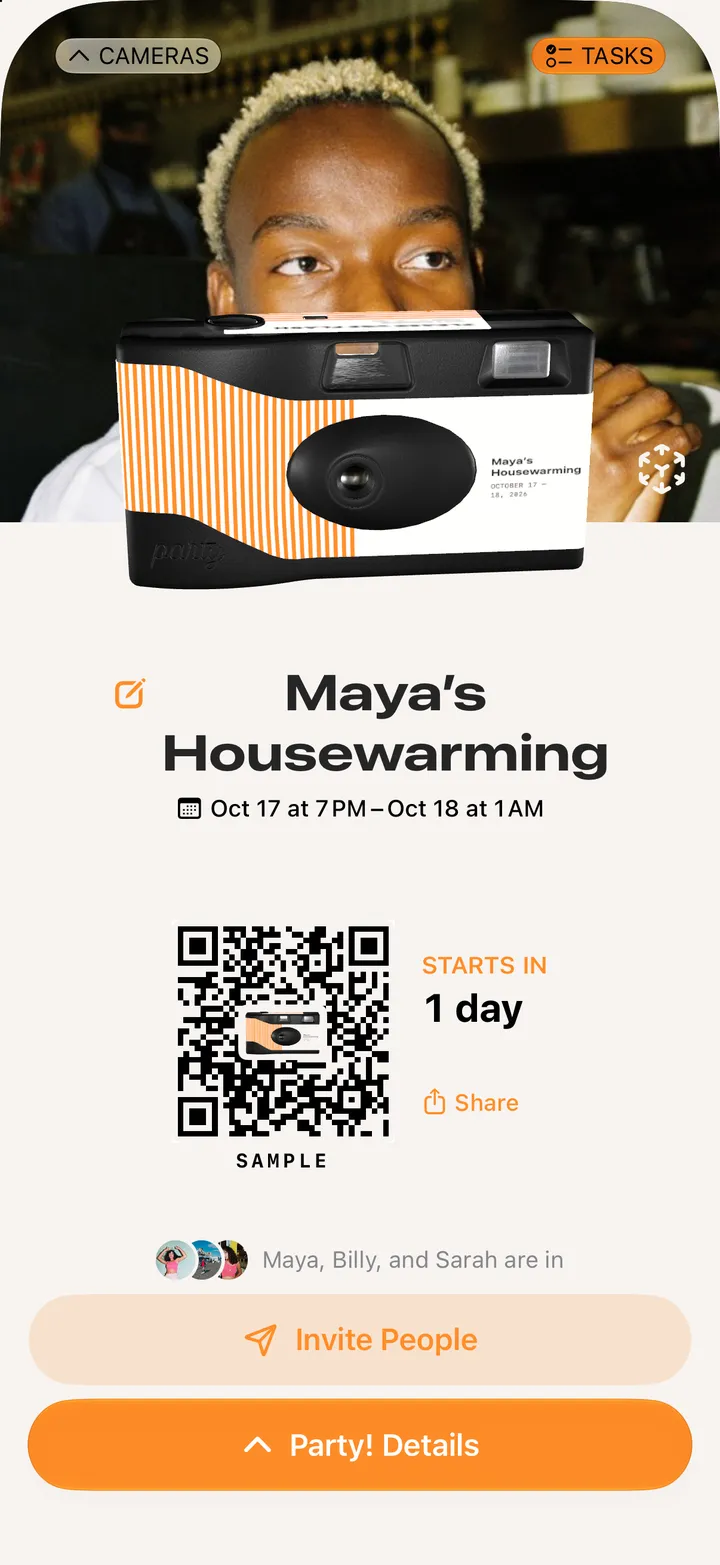
Party! finds parties in your calendar and lists them under Suggested Party! Cameras. Tap Create Party!, check the details, then tap Schedule Party! Camera.

Party! · 2.4 · 4 steps
  1. 01

    Find it under Suggested

    In your Library. Party! looks 90 days ahead.
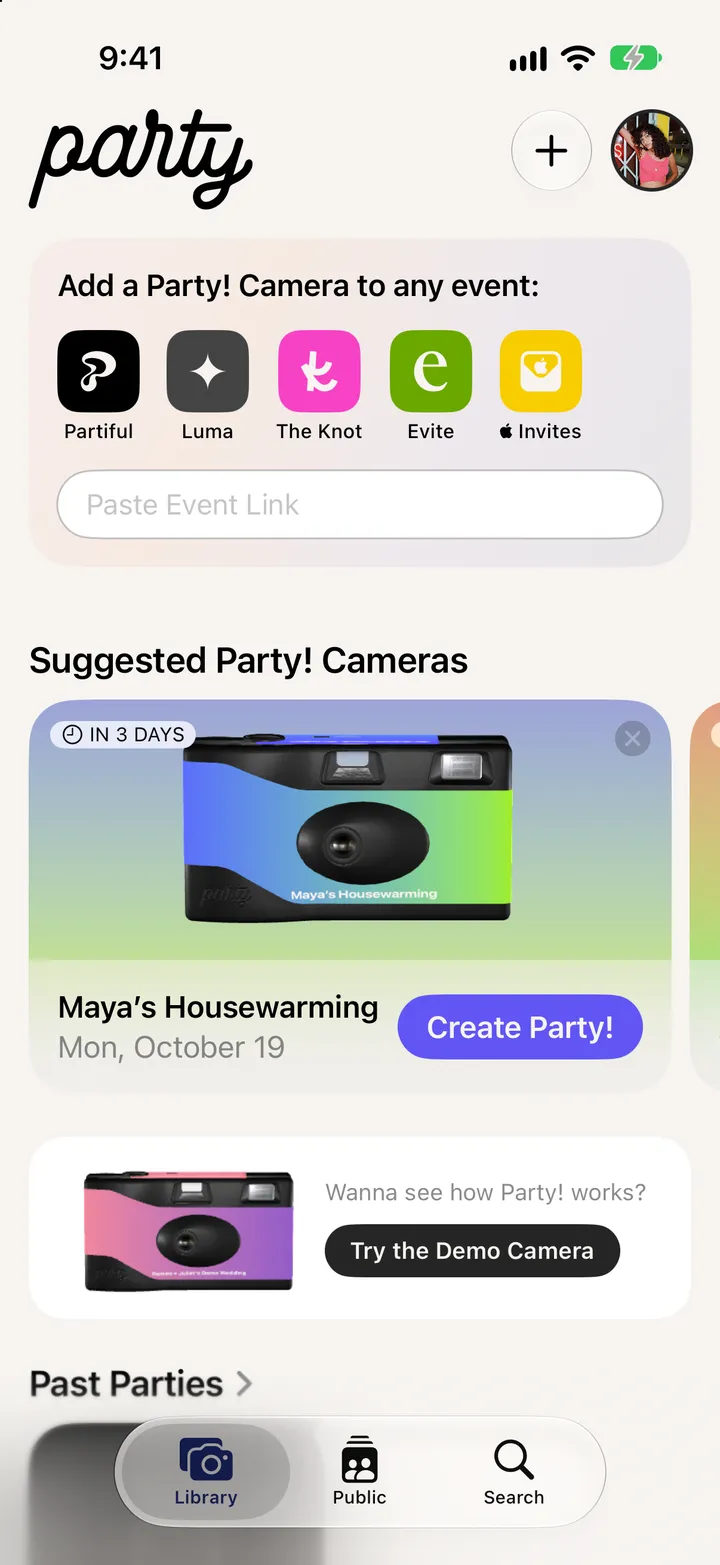
    Step 1: Find it under Suggested
  2. 02

    Tap Create Party!

    Step 2: Tap Create Party!
  3. 03

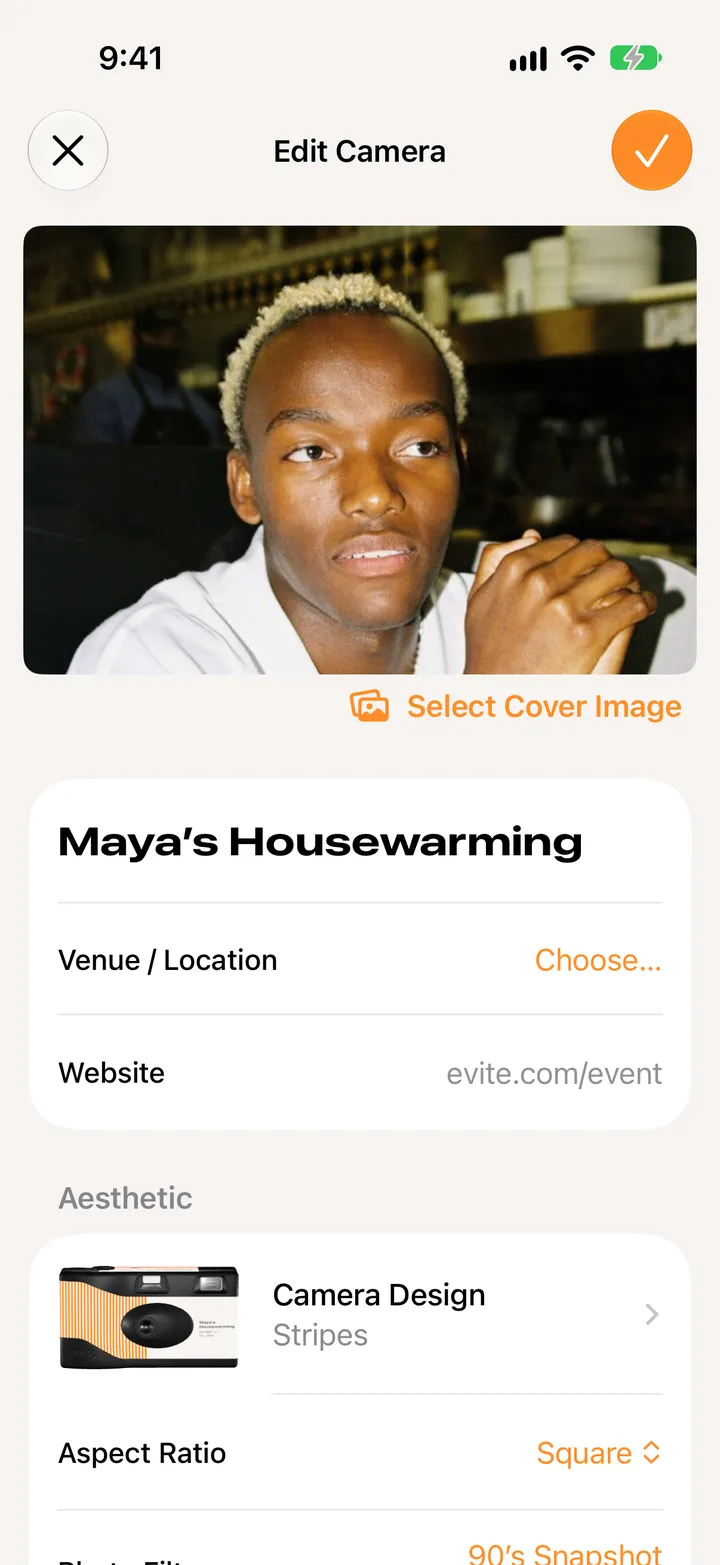
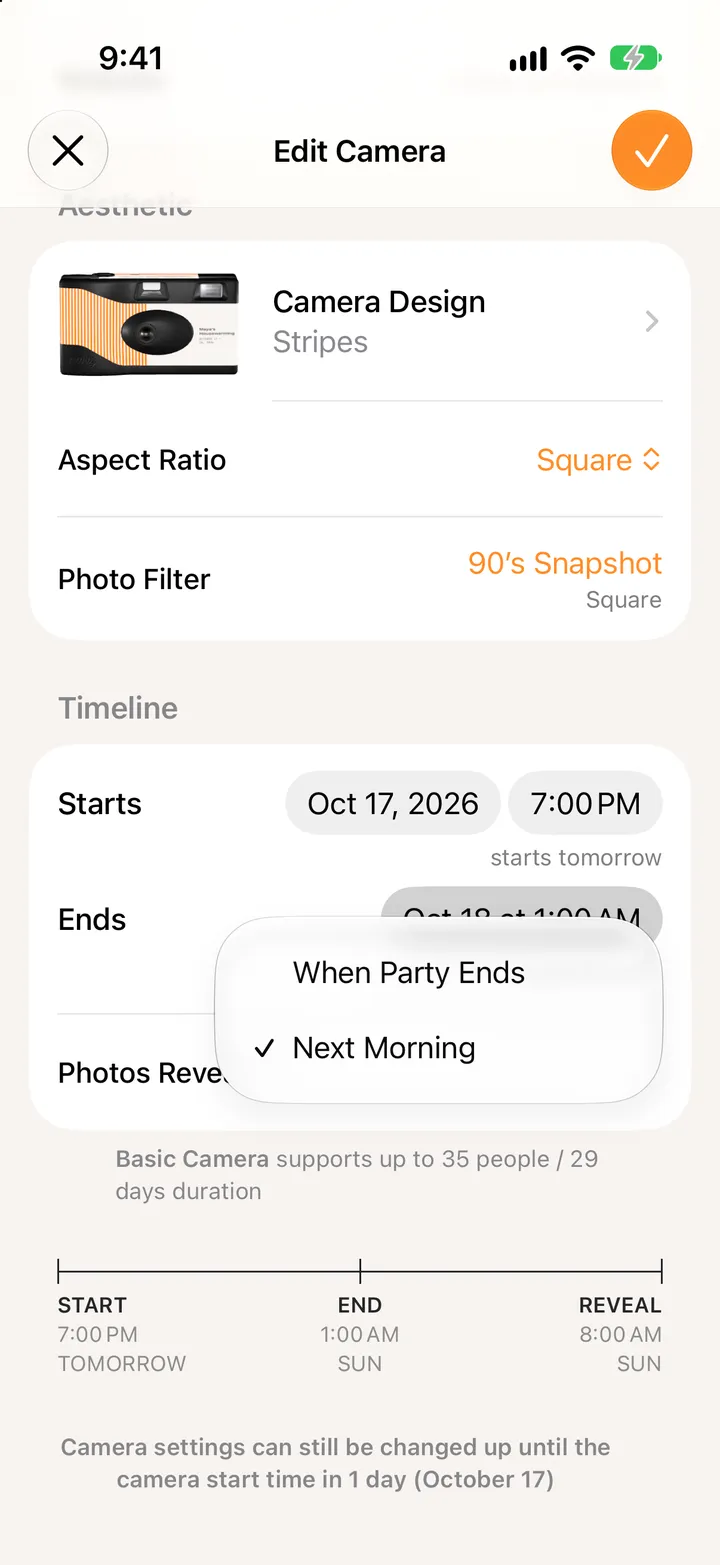
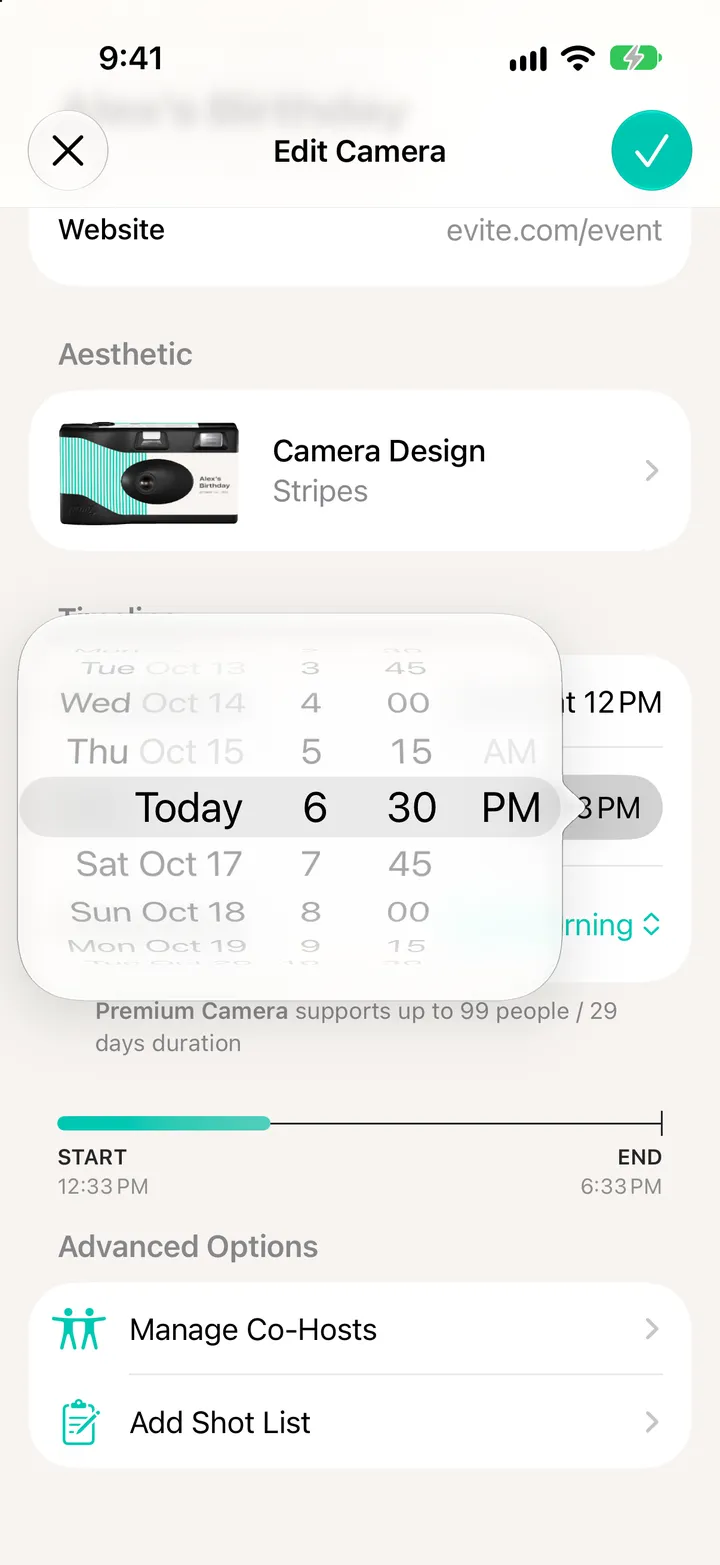
    Check the details

    The name, date and place come from your calendar. Tap any of them to change it.
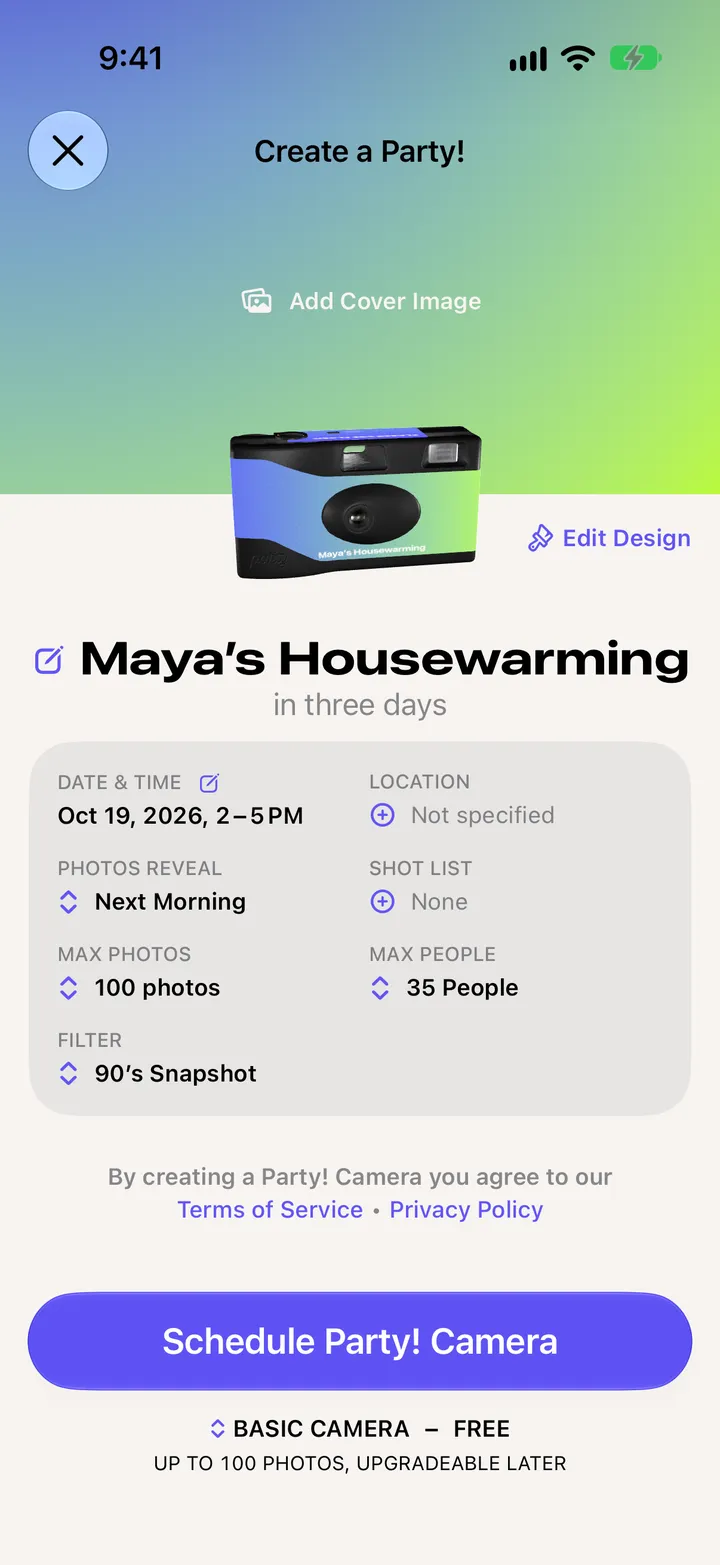
    Step 3: Check the details
  4. 04

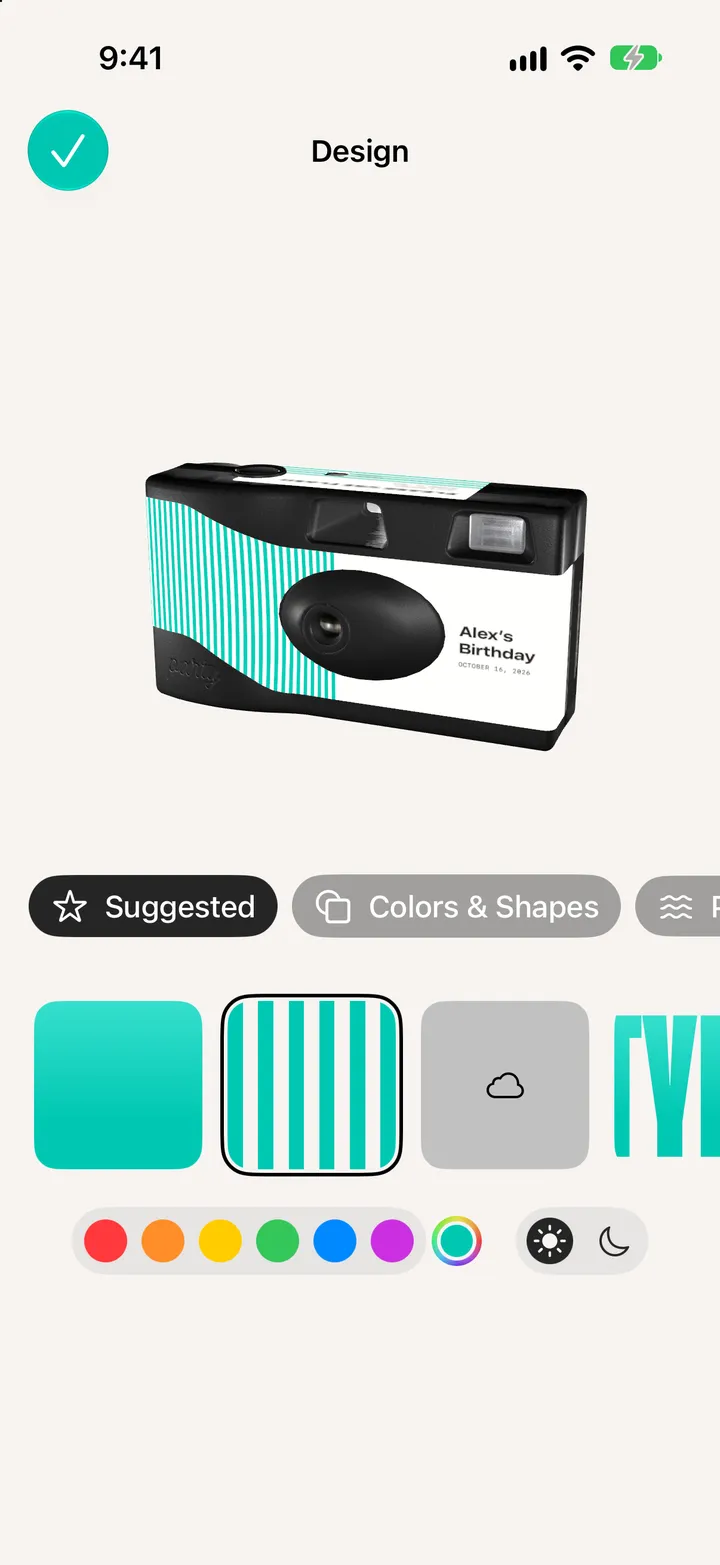
    Tap Schedule Party! Camera

    Step 4: Tap Schedule Party! Camera

Good to know

  • No suggestions? Tap Connect to Calendar in your Library and let Party! see your calendar.
  • Parties you make go back into your calendar with their link. Turn that off with Sync With Calendar in your account’s Additional Settings.