Party! guideDelete a photo before the reveal

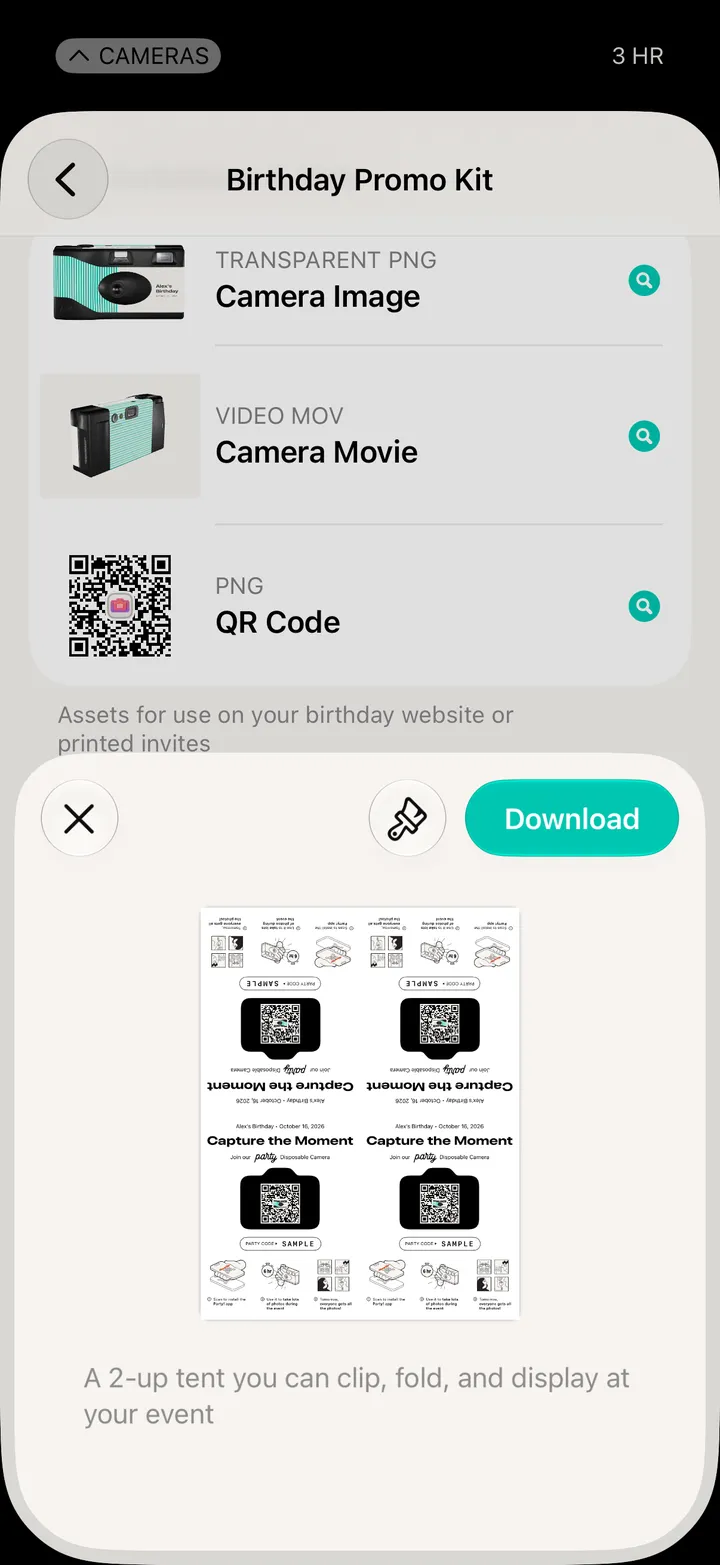
On a Premium camera, hosts can take a photo off the roll before anyone sees it. Open Party! Details, tap Preview, tap the photo, then Delete and Delete Photo Permanently.

Party! · 2.13 · 4 steps
  1. 01

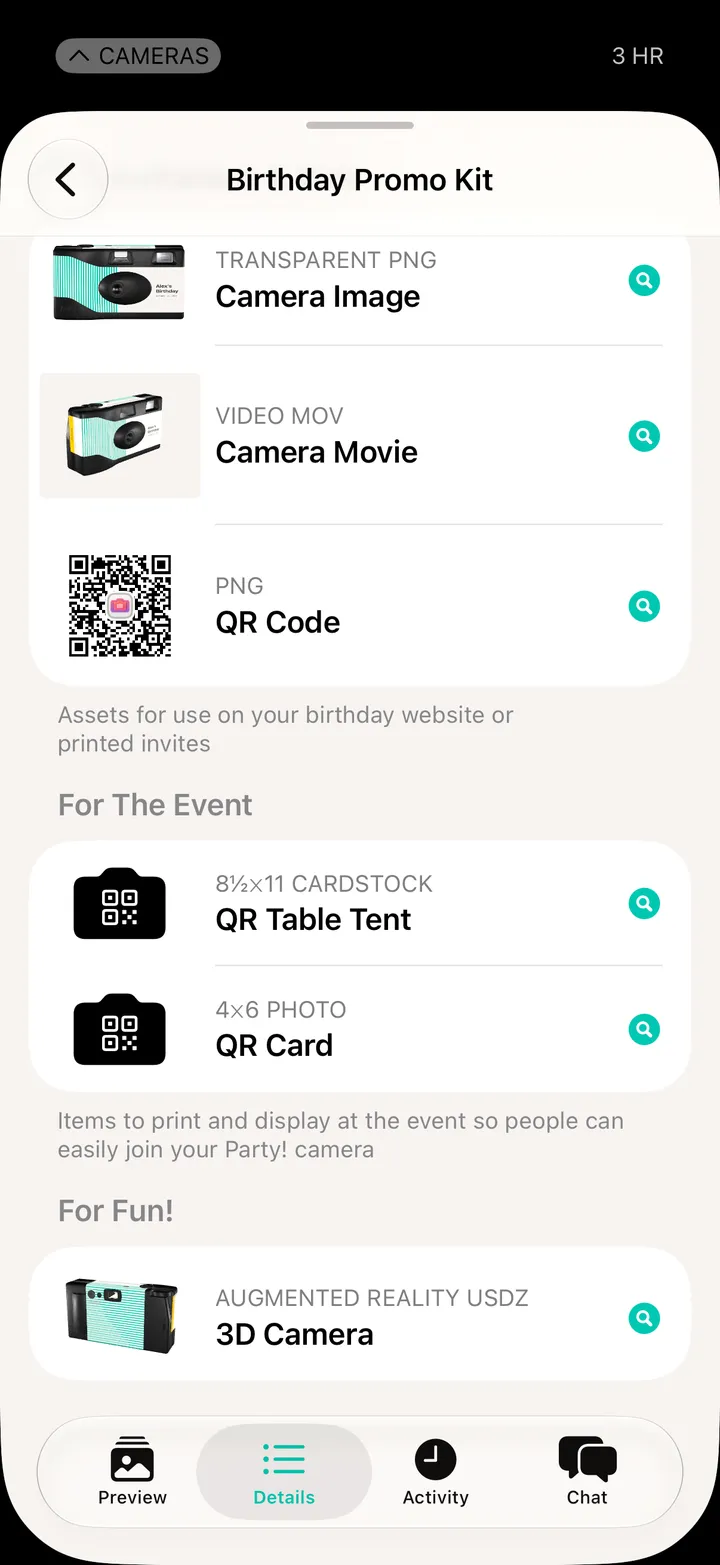
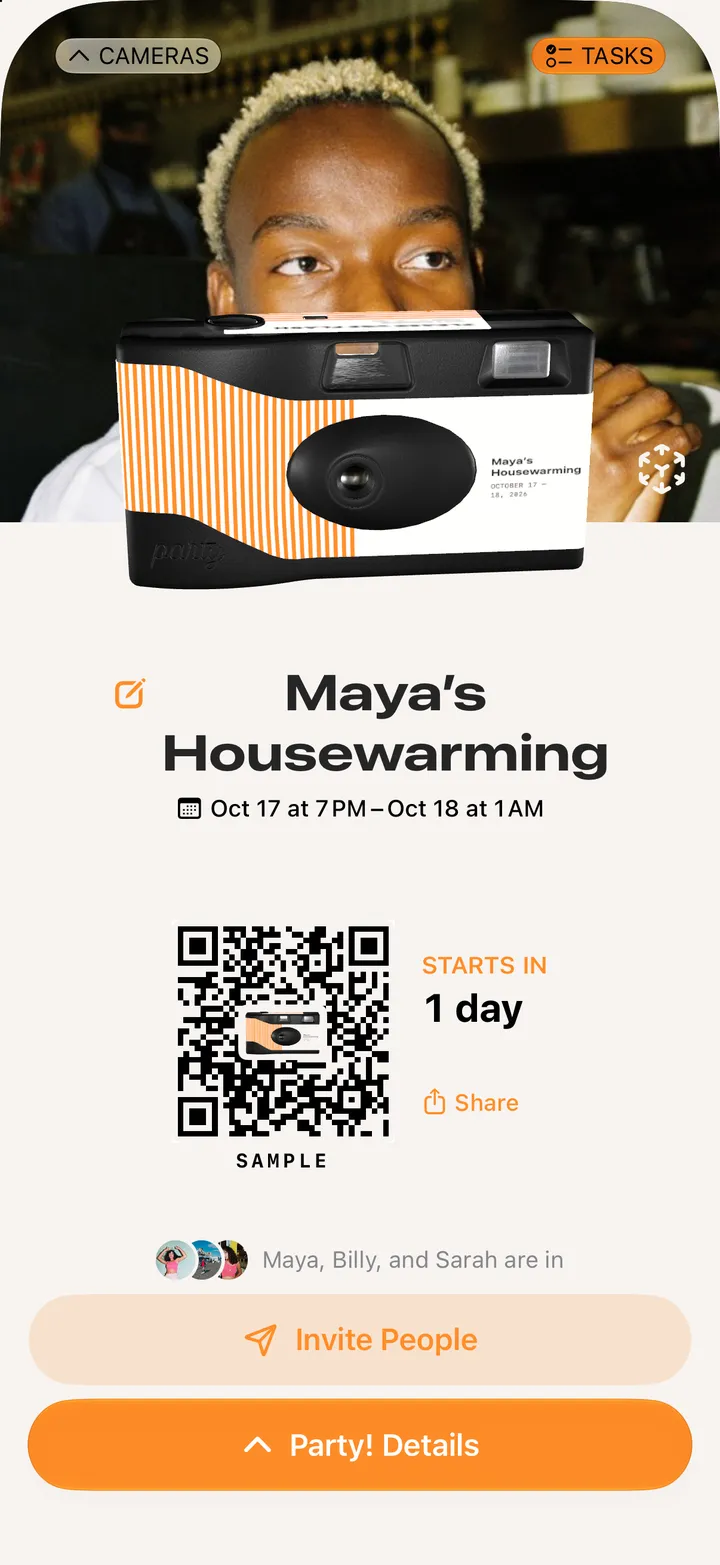
    Tap Party! Details, then Preview

    Bottom left. Only hosts and co-hosts see it. Every photo shows up here as it’s taken.
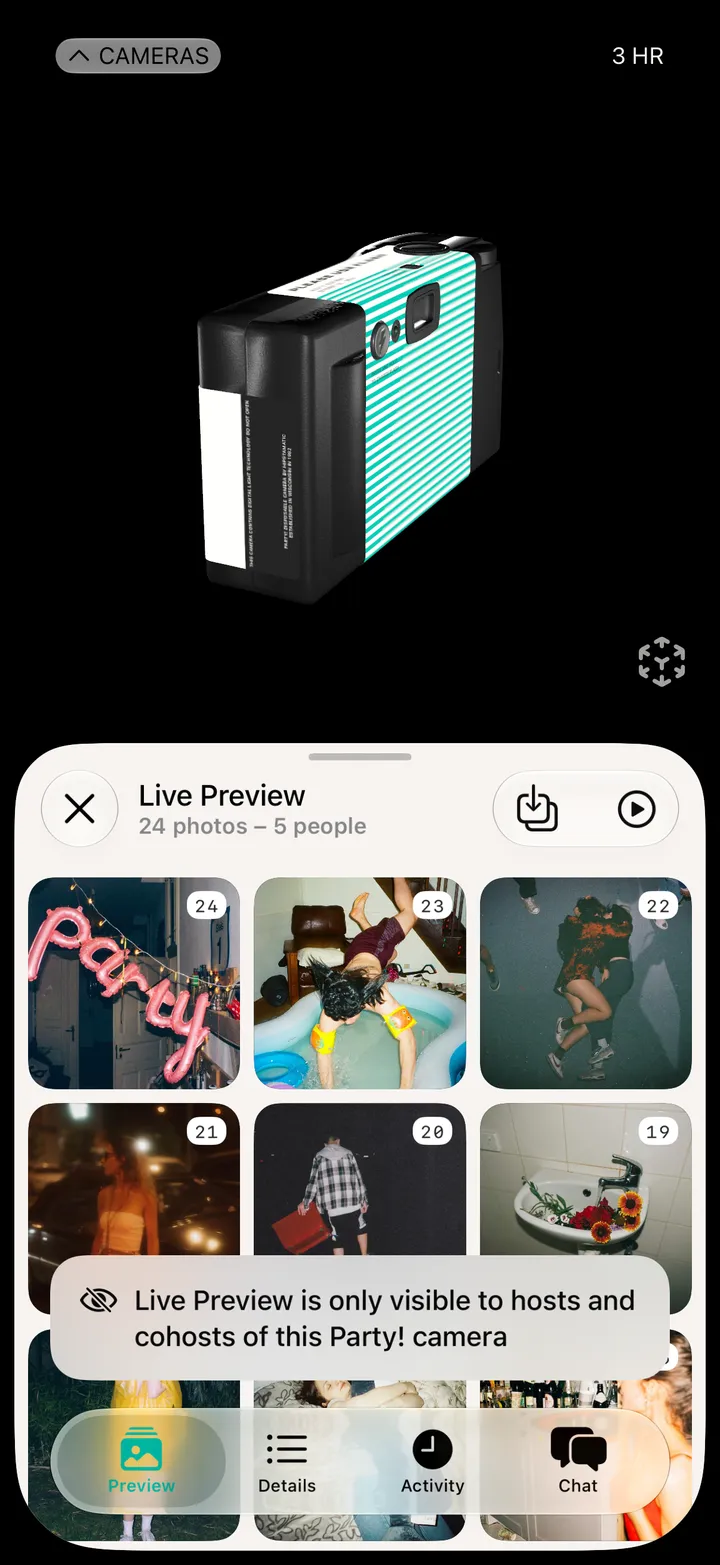
    Step 1: Tap Party! Details, then Preview
  2. 02

    Tap the photo

    Each one is numbered, with who took it.
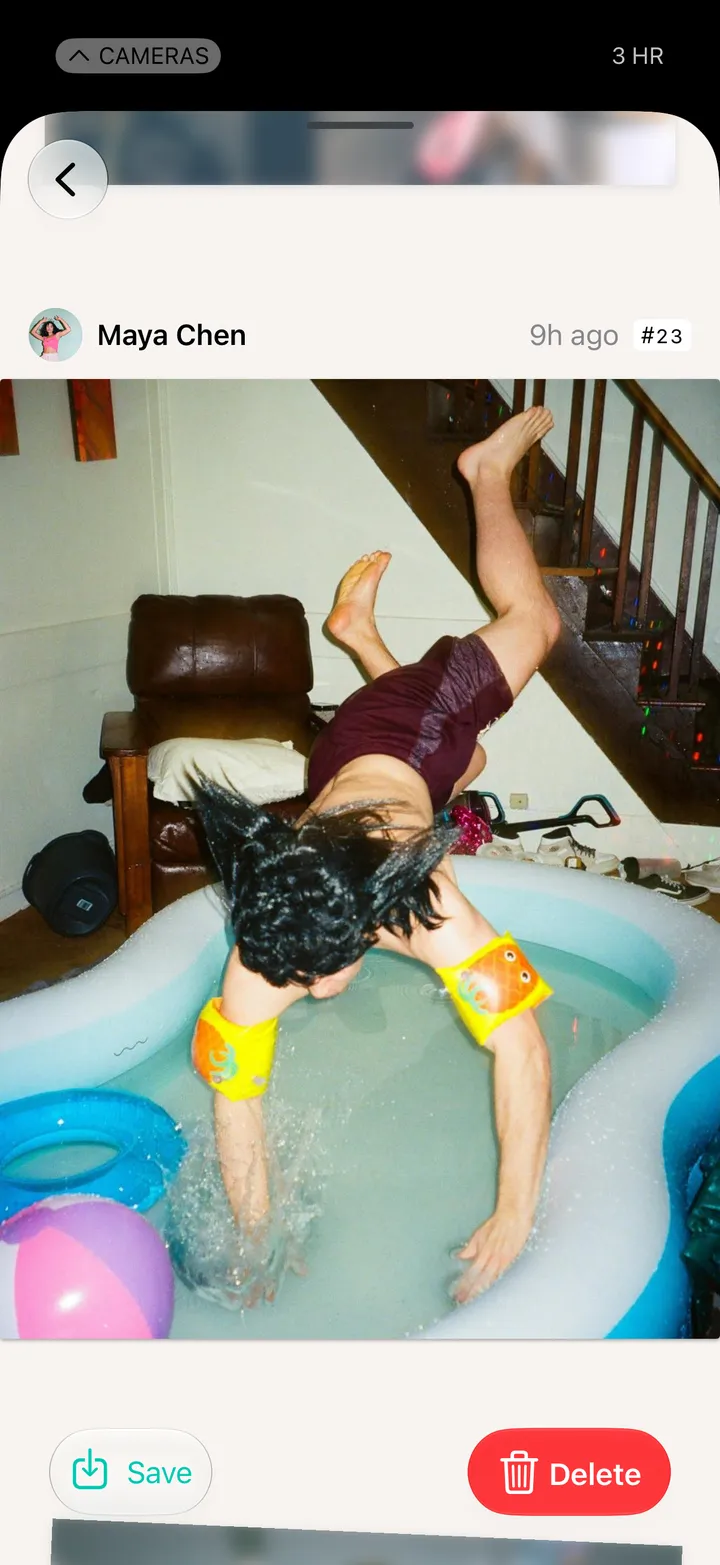
    Step 2: Tap the photo
  3. 03

    Tap Delete

    Step 3: Tap Delete
  4. 04

    Tap Delete Photo Permanently

    Guests won’t see it at the reveal. It can’t come back.
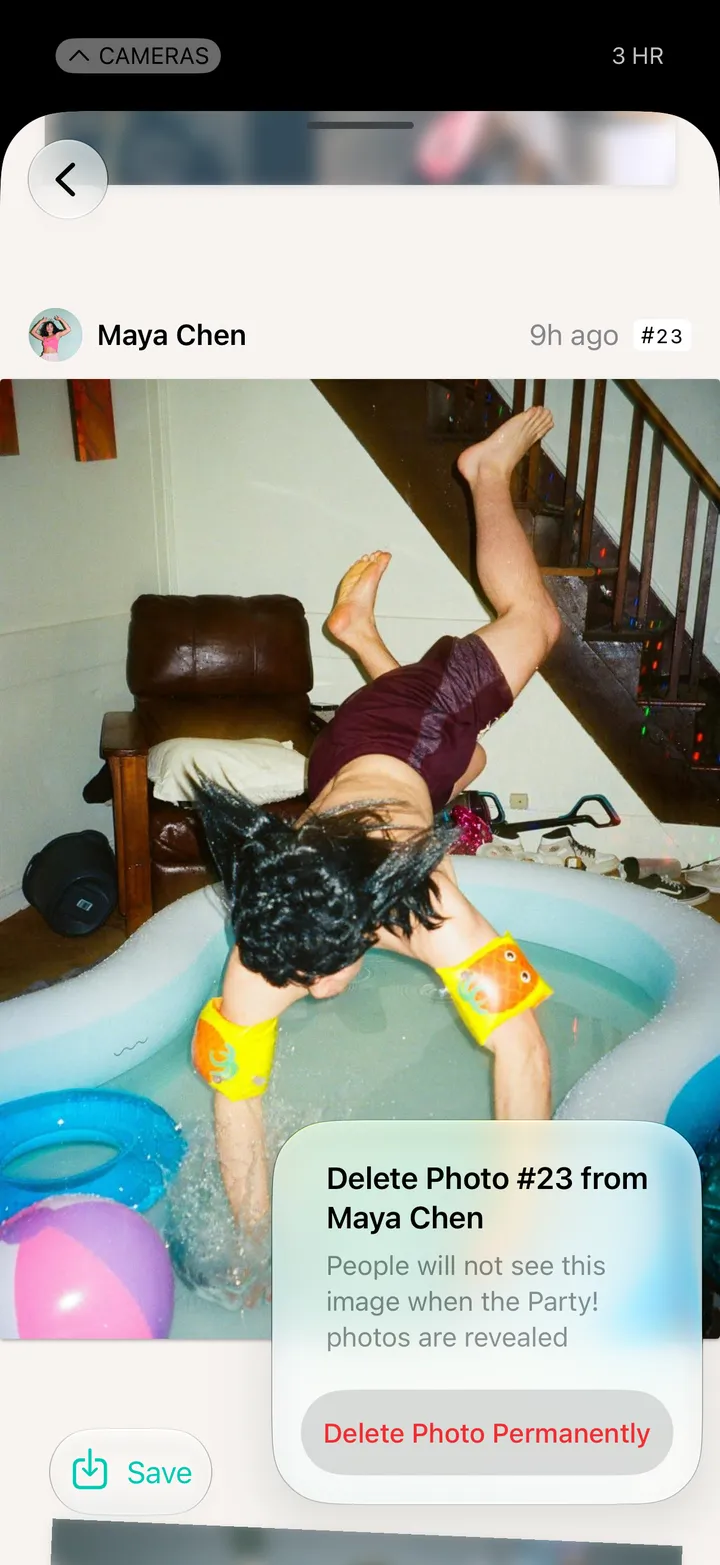
    Step 4: Tap Delete Photo Permanently

Good to know

  • Preview comes with Premium cameras, the size for weddings and big events.
  • It works until the reveal: Live Preview while the party’s on, Photos Moderation after it ends.
  • Deleting after the reveal takes the photo off the roll, but not off phones that already saved it.